
How to invite your family
How to invite family members so that you can view the same family tree and add records together.
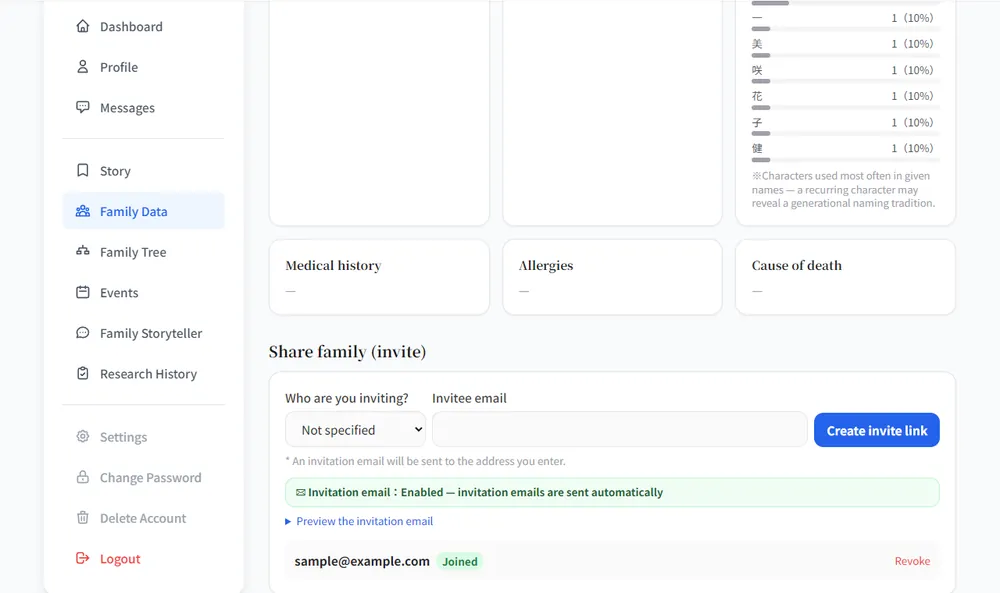
Open “Share family (invite)” at the bottom of Family Data
Scroll down the “Family Data” page in My Page to find the “Share family (invite)” section.
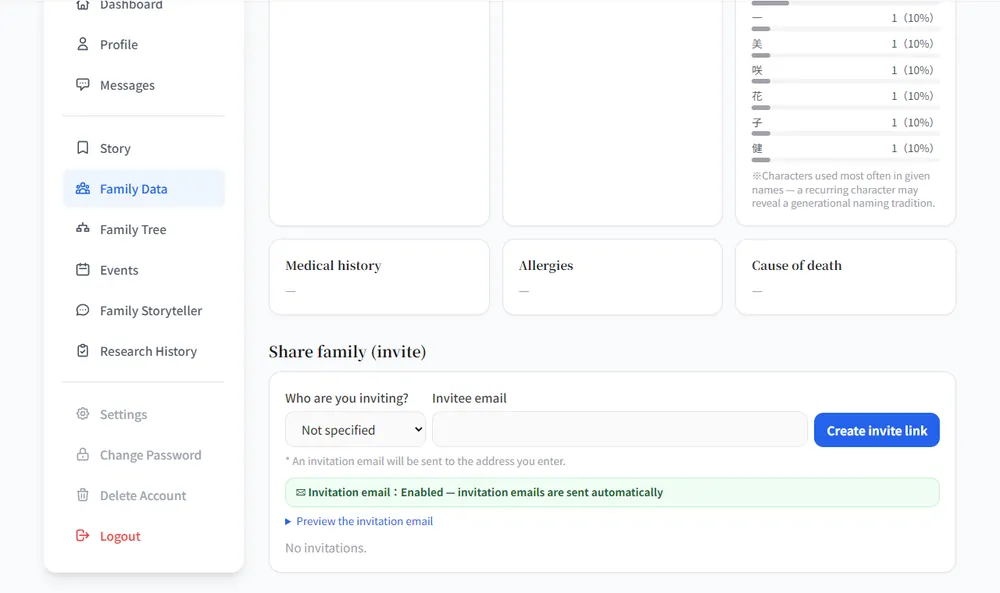
Enter the person’s email and click “Create invite link”
With “Who are you inviting?” you can pick which family member they are (“Not specified” is fine too). Enter the email address and click “Create invite link”; the invitation email is sent automatically.
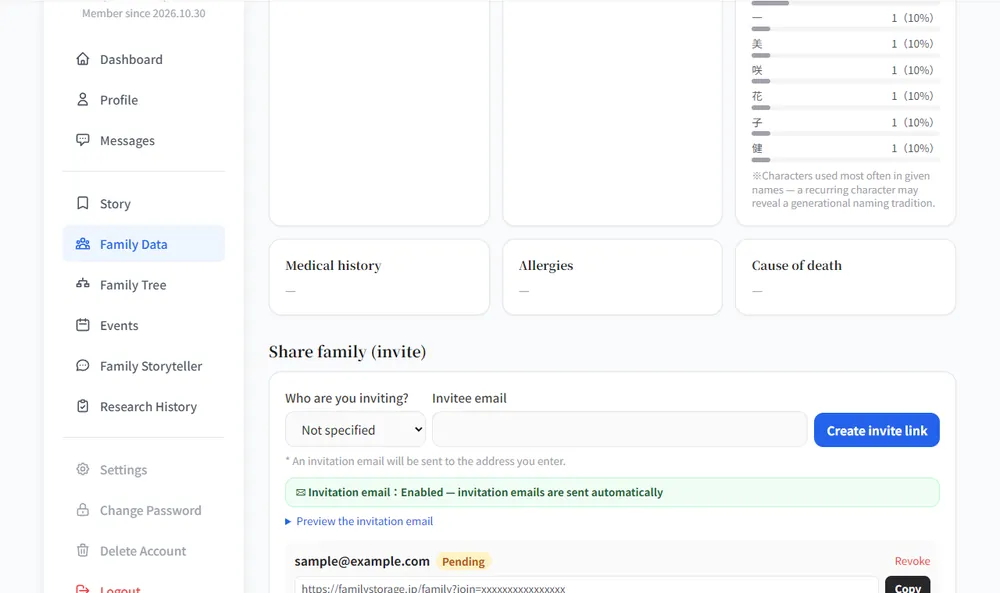
“Pending” appears below, along with the invite link. If the email does not arrive, “Copy” the link and send it to them yourself, for example by LINE.
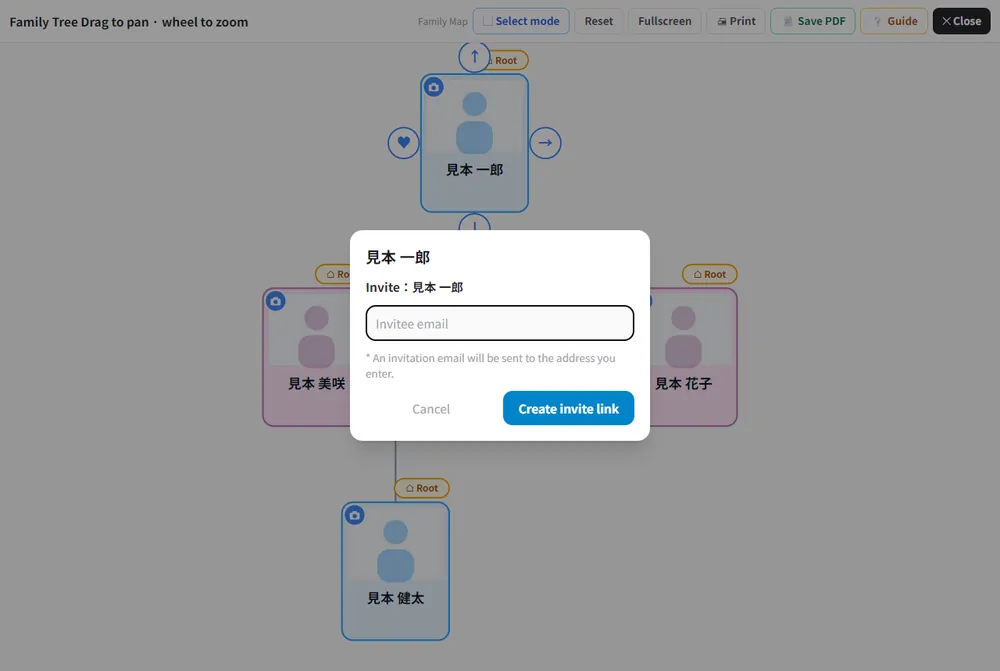
You can also invite from a card on the tree
On the family tree, tap the card of the person you want to invite and click “Invite this person”. Enter the email and click “Create invite link” to invite that person.
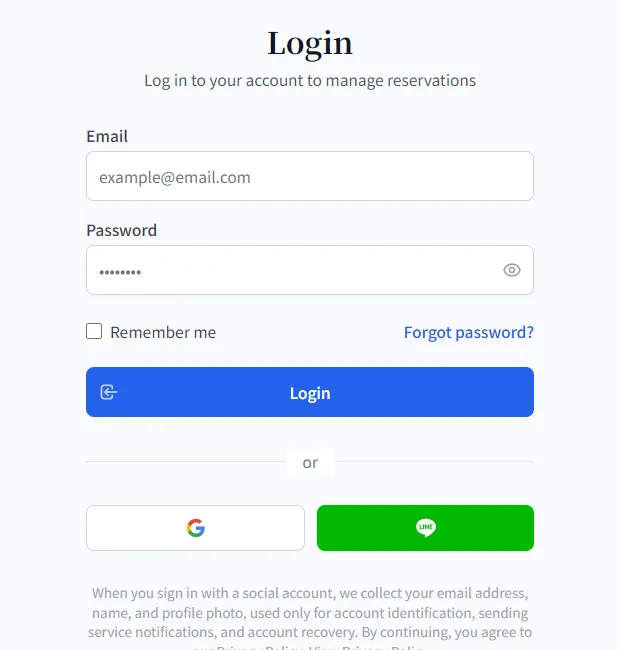
The invited person opens the link
When the invited person opens the link, the login page appears. They should log in with the email address that was invited. If they are not a member yet, they register with that email address.
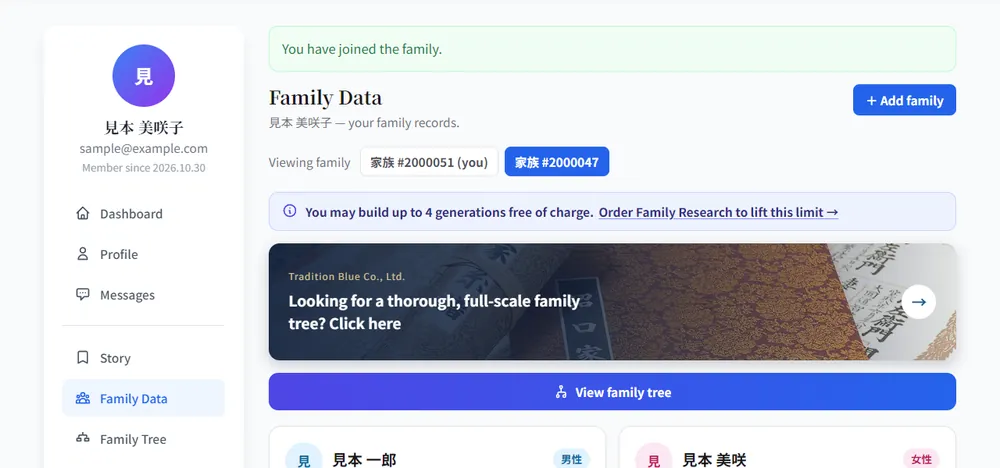
“You have joined the family.” is shown
Once they log in, they join the family automatically. After joining, the “Viewing family” buttons let them switch between their own family and the family they were invited to. If they log in with a different email address, “This invitation was issued for a different email.” is shown. If “Invalid or expired invitation.” appears, please issue the invitation again.
On your side it becomes “Joined”
Once they join, the invitation changes from “Pending” to “Joined”. An invitation that has not been used yet can be withdrawn with “Revoke”.
Frequently asked questions
Ask them to check the spam folder, or copy the issued invite link and send it to them directly, for example by LINE.
Log in (or register) with the email address the invitation was sent to.