
Getting Started with Family Storage — From Signing Up to Opening the Family Map
Thank you for visiting Family Storage.
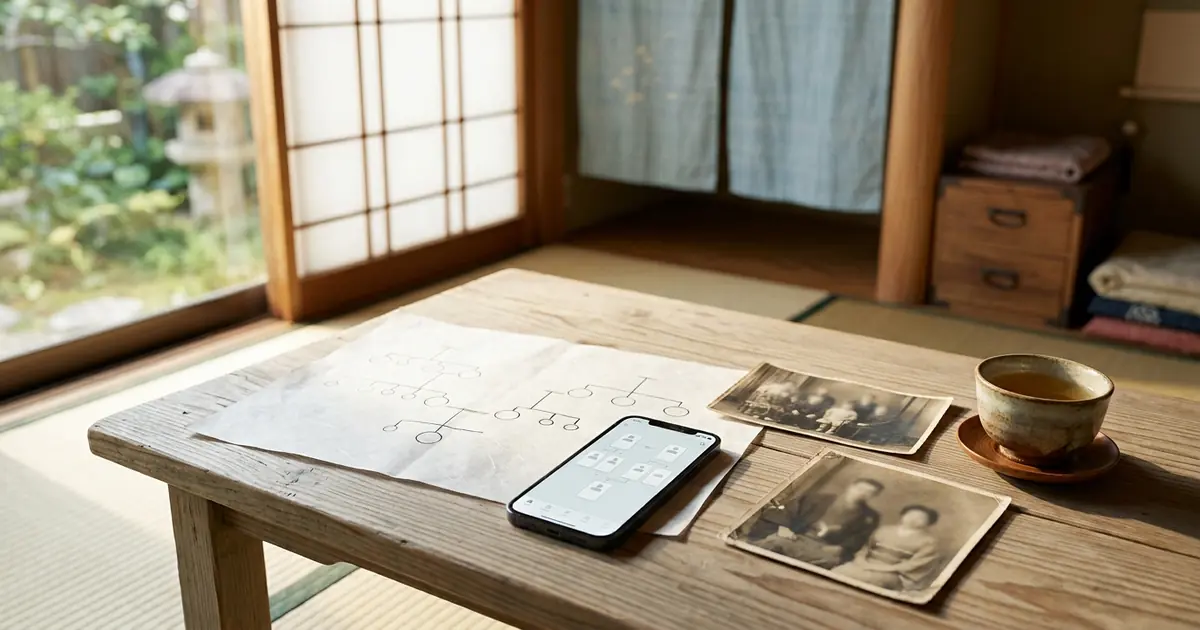
Family Storage is a service for keeping your family's records and family tree, and sharing them with your family. Both creating a family tree and storing your family's records are free. The only paid service is "Family Research," in which specialists research your ancestors from family registers (koseki).
The service is operated by Tradition Blue Co., Ltd., which has helped produce the NHK General TV program "Family History" and has created many family trees.
In this series, "How to Use Family Storage," we introduce the features one at a time so that even first-time users can use them with confidence. Part 1 covers everything from signing up to opening the Family Map.
What You Can Do with Family Storage
- Family Map — Arrange your family members as cards and connect them with lines to build a family tree. You can also use your fingers on a smartphone
- Records for each person — You can keep dates of birth, marriages, self-introductions, health records, photos, and even the location of graves
- Anniversary notices — We notify you in advance of birthdays, death anniversaries, and wedding anniversaries
- Family invitations — Invite your family members to keep records together
- AI Storyteller — Answers your questions like a story, based on your family's records
- Family Research — Specialists obtain family registers and research your ancestors (paid)
All 9 Parts of This Series
- Getting Started with Family Storage (this part)
- Adding Family Members to the Family Map
- Making the Family Map Easier to Read
- Printing the Family Tree / Saving as PDF
- Keeping Records for Each Person
- Anniversary Notices and Calendar Sync
- Inviting Your Family to Build It Together
- AI Storyteller and the Help Chatbot
- Applying for Family Research
If you are new, reading Parts 1 through 3 will give you everything you need to get started on your family tree.
Signing Up — Three Ways
You can sign up from "Sign Up" in the upper right of the screen. There are three ways to register.
1. Sign up with your email address
- Enter your name, email address, password, and other details to register
- A confirmation email beginning with "Welcome!" will be sent to the email address you registered
- Press "Verify email" in the email to complete your registration
The link in the confirmation email is valid for 48 hours. If it does not arrive, please check your spam folder. If you still cannot find it, please contact us at [email protected].
2. Sign up with your Google account
Simply press "Log in with Google" and choose the Google account you use. There is no need to remember a new password.
3. Sign up with your LINE account
Simply press "Log in with LINE" and give permission in LINE. If you use LINE regularly, this is the easiest way.
From then on, please log in using the same method you used to sign up.
Adding It to Your Smartphone's Home Screen
If you add Family Storage to your home screen on your smartphone, you can open it with a single tap, just like an app. This is also handy for receiving push notifications about anniversaries.
iPhone(Safari)
- Open Family Storage in Safari
- Press the Share button at the bottom of the screen (the icon with an arrow coming out of a square)
- Choose "Add to Home Screen", then press "Add"
Android smartphones (Chrome)
- Open Family Storage in Chrome
- Press "⋮" in the upper right
- Choose "Add to Home screen" or "Install app"
The name "Family Storage" and a blue family tree icon will appear on your home screen.
Once You Log In, Go to My Page
Once you log in, you can use each feature from the My Page menu.
- Family Data — The Family Map, plus your family list and records
- Anniversaries / Events — The list of anniversaries and notice settings
- AI Storyteller — Ask questions of your family's records
- Research Application History — Check your Family Research applications
Opening the Family Map
- Open "Family Data" from the My Page menu
- Press "View family tree" at the top of the page
- The Family Map opens
When you first open it, there is only one card: your own. The gold "You" mark below the card shows that it is you. From here, you expand your family tree to your parents, spouse, siblings, and children.
The Family Map also includes an "Operation Guide". If you ever forget what a button does, please take a look at any time.
The First Step — Entering Your Own Information
Before adding family members, let's first fill in your own card.
- Tap your own card
- Press "✎ Edit"
- Enter your surname, given name, name reading (furigana), sex, date of birth, and so on, then save
Please be sure to select your sex. The Family Map decides the layout based on sex, for example placing a married couple with "the wife on the left and the husband on the right."
The date of birth is split into three fields: "Year," "Month," and "Day". When you enter a four-digit year, the cursor moves to the month field automatically. Even ancestors born in the Meiji or Taisho eras can be registered just by entering the numbers.
For Your Peace of Mind
- Names, name readings, addresses, phone numbers, and similar details are stored encrypted
- The AI Storyteller answers without sending your family's records to any outside AI service
- Your family tree is not made public to anyone other than the family members you invite
- If you wish to cancel your membership, you can do so from My Page
If You Need Help
The help chatbot, "Ask us anything," in the lower right of the screen answers questions about how to use the site. If that does not solve your problem, please contact us via "Contact" in the menu at the top of the screen. The Family Storage Office will reply.
Useful Things to Have on Hand Before You Start
You can start your family tree the very day you decide to. That said, having the following on hand will make things much easier.
- Notes of your family's dates of birth — If you know them for your parents, siblings, and even grandparents, everyone will be arranged neatly in order
- Old photo albums — Names and dates are often written on the backs of photos
- Family registers you already have — If you have certified copies of the family register obtained for an inheritance or similar, they are a treasure trove of your ancestors' names and dates of birth
- Notes of questions for your family — Write down what you want to ask, such as "What was Grandma's maiden name?" or "What was Great-grandpa's name?"
It's fine if you don't have everything. The secret to keeping it up is to enter what you know, and add more as you find out. You can also learn about family trees themselves on the "What Is a Family Tree?" page in the menu at the top of the screen.
Frequently Asked Questions
Is it really free to use?
Yes. Creating a family tree and storing your records are free. The only paid service is Family Research, in which specialists do the research.
I haven't received the confirmation email
Please check your spam folder. If more than 48 hours have passed or you cannot find it, please get in touch via the contact form.
Can I use it on both a computer and a smartphone?
Yes. If you log in with the same account, you can see the same family tree from either one.
Next Time: Adding Family Members
In the next part, we will show you how to add parents, spouses, siblings, and children using the four buttons that appear around a card on the Family Map.
In this series, "How to Use Family Storage," we introduce the features one at a time so that even first-time users can use them with confidence.

Comments (0)
No comments yet. Be the first to comment.