
Adding Family Members to the Family Map — The Four Buttons and Dotted-Line Cards
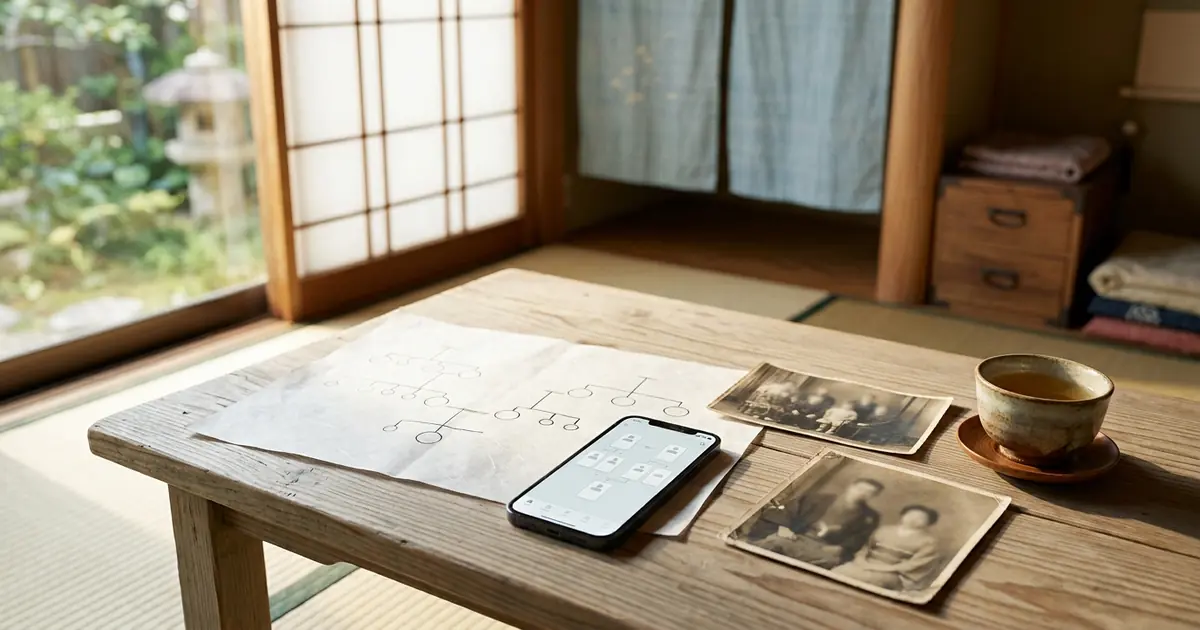
In the previous part, we walked you through signing up and opening the Family Map. In this part, it's finally time to add your family members.
The best way to build a family tree is to start with those closest to you. Starting from your own card, let's expand it one person at a time: your parents, spouse, siblings, and children.
Family Members Are Added from the "Center" Card
The Family Map always has one "center" person. At first, that is you, and your card is framed in gold.
This is the most important rule. Family members are always added starting from the "center" person. You add your own parents with yourself as the center. To add your mother's parents, first switch the center to your mother and then add them (we explain how to switch in the next part).
The Four Buttons Around a Card
When you touch the center card, four buttons appear around it.
- ↑ (top) = Parents
- ♥ (left) = Spouse
- → (right) = Brothers / sisters
- ↓ (bottom) = Children
Each of the four buttons has a different meaning. Press the button for the relationship of the person you want to add.
Entering the New Person's Information
When you press a button, the entry screen opens.
- Surname, given name, name reading (furigana)
- Maiden name — Surname before marriage (for your mother, wife, and so on; as far as you know)
- Sex — Please be sure to select it
- Date of birth — Enter numbers in the three fields: "Year," "Month," and "Day"
- Blood type
- Deceased — If the person has passed away, check this and enter the date of death
You cannot save without selecting a sex. If you see "Please select a sex," please check.
If the dates don't add up, for example a parent born after their child, we will let you know that "The dates of birth do not match." This helps you notice input mistakes right away.
For people registered as deceased, a small "the late" is added before the name on the card, and their age at death is calculated from the date of birth and date of death.
Adding Parents (↑)
When you press ↑ and add your father or mother, a card for the other parent also appears, with a dotted line. This is because, in a family tree, parents are shown as a pair.
A dotted-line card is a parent who is "Not registered (tap to register)". Once you know the name, tap the dotted-line card to register it. When registered, it changes to a solid-line card.
You can register up to two parents. If two parents are already registered, we will let you know that "Both parents are already registered."
Adding a Spouse (♥)
Press ♥ to add a spouse. A current married couple is connected by a solid double line.
In the Case of Remarriage
You can add more than one spouse. You can register both a former spouse and a current spouse.
Showing a Divorce
- Tap that person's card
- In the list of relationships that appears, use the button on the spouse's row to switch between "Divorced" and "Current"
The former spouse gets a "Divorced" mark, and the line changes to a dotted double line. Even when registered as a former spouse, the connection to the children is kept as it is.
Dates of marriage and divorce can be entered in the "Marriage" section of that person's detailed record (we explain this in Part 5).
Adding Brothers and Sisters (→)
Press → to add a brother or sister. They are placed as children of the same parents.
It's fine if you haven't registered your parents yet. In that case, dotted-line parents are created automatically, and the siblings are placed properly under the same parents.
Brothers and sisters are arranged in order of date of birth, with the eldest on the right. No matter what order you add them in, they are rearranged automatically.
Adding Children (↓)
Press ↓ to add a child. Children are placed below the middle of the line connecting their parents.
If there is more than one spouse, for example due to remarriage, a field appears to choose "the child's other parent". Please choose which spouse the child is with.
Up to 4 Generations Are Free
You can add family members free of charge for up to 4 generations. Generations are counted separately for each surname lineage.
When you reach 4 generations, the add button changes to a 🔒 mark, and a message tells you that "Applying for Family Research removes this limit." If you would like to trace your ancestors further back, please consider research by our specialists (we explain this in the final part).
Also, ancestors should be added from the person in the topmost generation. When you tap a dotted-line father or mother card and register the name, "⌂ Set as center" appears on that card, and you can then add further generations above it.
Connecting People Who Are Already Registered (🔗)
You can also connect people you registered separately as parent and child or as a married couple later on.
- Tap the card of the person you want to connect
- Press "🔗"
- Tap the card of the person to connect to
- Choose the relationship (spouse / parent and child / sibling)
If you want to stop partway, press the ESC key to cancel.
If You Make a Mistake
Removing just the line
Tap the card and press the ✕ in the list of relationships. You will be asked "Remove the line for this relationship? (The person will remain.)" Choose Yes, and only the line will be removed.
Deleting a person
You can delete a person with the ✕ in the upper right of their card. Your own card (marked "You") cannot be deleted.
Recommended Order
If you are not sure where to start, we recommend the following order. Expanding from the closest people outward makes it harder to get connections wrong.
- Yourself — Enter your sex and date of birth
- Spouse and children — Add them with ♥ and ↓
- Parents and siblings — Add them with ↑ and →
- Grandparents — Use "⌂ Set as center" on your father (or mother), then add them with ↑
- Earlier ancestors — Register names on the dotted-line cards, starting with the ones you know
When registering your mother or wife, entering her maiden name as well will help later when you create separate family trees for your mother's or wife's side (we explain this in the next part).
Each time you add a family member, the family tree is rearranged automatically. If you can't find the card of the person you added, zoom out to view the whole tree.
It's Fine If There Are Things You Don't Know
If you don't know someone's date of birth, you can register them with the date of birth field left blank. If even one of the year, month, or day is missing, it will not be saved as a date, so please enter all three once you know them. For ancestors whose names you don't know, leaving them as dotted-line cards keeps the connections in the family tree intact.
A family tree is not something you finish all at once. It is something you grow little by little, asking your family and obtaining family registers along the way. Start today by making cards for your parents and siblings. Even that much will let you see the shape of "our family" on the screen.
Frequently Asked Questions
The four buttons don't appear
The four buttons appear on the center card. Press "⌂ Set as center" on the card of the person from whom the relationship starts, then try again.
The buttons show 🔒
You have reached the 4 generations you can create for free. Applying for Family Research removes this limit.
My siblings are in the wrong order
Please check that dates of birth have been entered. People without a date of birth are placed at the left end.
Next Time: Making It Easier to Read
As your family grows, the next step is readability. In the next part, we explain switching the center person, the "○○ family" buttons, and saving the layout.
In this series, "How to Use Family Storage," we introduce the features one at a time so that even first-time users can use them with confidence.

Comments (0)
No comments yet. Be the first to comment.