
Keeping Your Family Map Easy to Read — Switching the Center, “the ○○ Family” and Saving the Layout
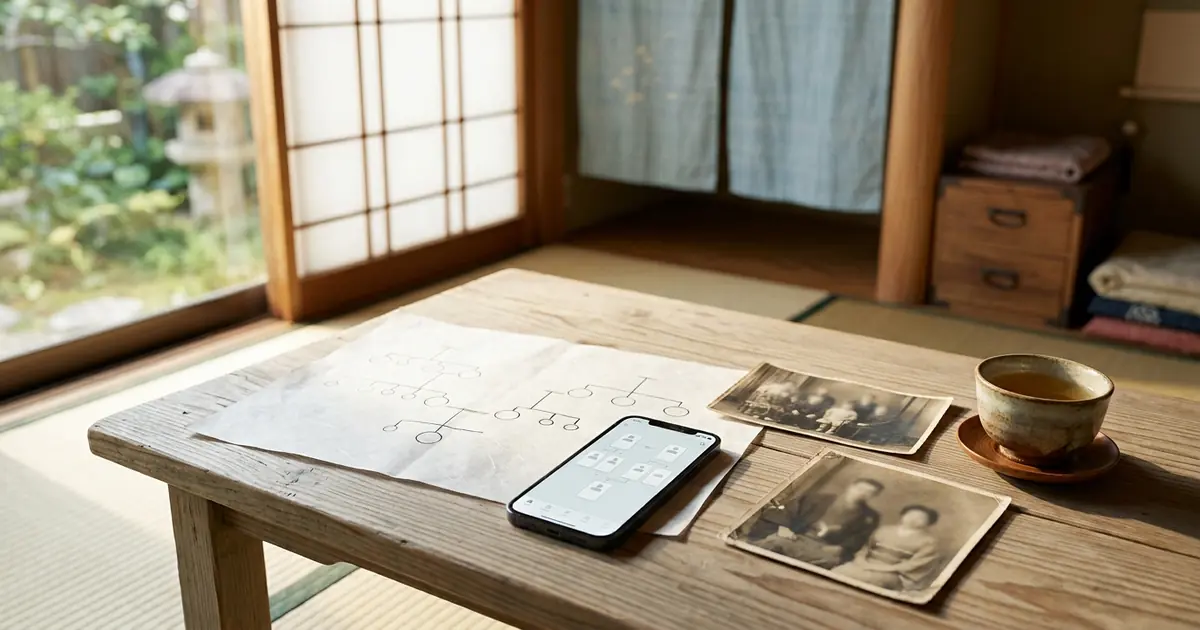
As your family grows to ten, then twenty people, the family tree gradually becomes more complex. Your father’s family, your mother’s family home, your wife’s family home — if everyone is lined up on a single screen, it becomes hard to follow who belongs to which family.
In this installment, we introduce three tools for keeping your Family Map easy to read.
- Switching the “center” — move the person at the heart of the family tree
- “The ○○ Family” buttons — switch to the family tree of another family, such as your mother’s or your wife’s side
- Saving the layout — arrange the card positions yourself and save them
If you added family members in the previous installment, please try these out as well.
First, How to Move Around the Screen
On a computer
- Drag the screen to move the whole family tree
- Use the mouse wheel to zoom in and out
On a smartphone or tablet
- Slide one finger to move the screen
- Spread or pinch with two fingers to zoom in and out
With a large family tree, you won’t get lost if you first zoom out to see the overall shape, then zoom in on the part you want to look at.
What Is the “Center”? — The Person at the Heart of the Tree
The Family Map always has one person who is the “center.” At first this is you, and a gold “Me” mark appears below your card.
There is one important rule here. When you add family members, the “center” person is always the starting point. The four buttons that appear around a card (parent, spouse, sibling, child) are shown on the center person’s card.
So, for example, if you want to add your mother’s parents (your maternal grandparents), first switch the center to your mother.
Switching the center
- Press “⌂ Set as center”, which appears just outside the top of the card of the person you want to switch to
- The family tree is rearranged around that person. The center person’s card gets a gold frame and a “Center” mark
- If you use the four buttons in this state, you can add family members starting from that person
To go back, press “Back to Me.” You can return to the family tree centered on yourself at any time.
Please note that “⌂ Set as center” does not appear on dotted cards (a father or mother whose name has not yet been registered). Once you tap a dotted card and register the name, “⌂ Set as center” will appear on that card too.
One Screen, One Family
The Family Storage Family Map shows one family per screen. If the people from your mother’s family home were lined up while you are viewing your father’s family, the lines would cross and become hard to read.
So how does it tell which person belongs to which family? The key is the maiden name.
- A person with a maiden name entered belongs to the family of that maiden name
- A person without a maiden name belongs to the family of their current surname
In Japan, a married couple shares the same surname, so the current surname alone cannot tell which family your mother came from. When you enter her maiden name, your mother is treated as a member of her maiden-name family, and the people of her family home are grouped together on that family’s screen.
On every family’s screen, the connection between husband and wife is always shown. Rest assured that your mother also appears on your father’s family screen as your father’s spouse. A daughter who has married into another family also remains on the screen of the family she was born into (her children appear on the screen of the family she married into).
How to enter a maiden name
- Tap that person's card
- Press "✎ Edit"
- Enter the surname before marriage in the “Maiden name” field and save
The maiden name field carries the note “Surname before marriage. Used to create a separate family tree for another ‘family,’ such as your mother’s or your wife’s side.” If you don’t know it, you may leave it blank.
Switching with “the ○○ Family” buttons
Once a maiden name is entered, buttons labeled “the ○○ Family” appear on the left side of the top of the Family Map. Press one to switch to that family’s tree.
The leftmost button is always your own family (marked with ★). No matter how many times you switch, pressing it takes you straight back. While no maiden names have been entered, there is nowhere to switch to, so these buttons are not shown.
The Rules for Automatic Arrangement
When you register family members, the Family Map arranges them automatically, following these rules.
- A married couple is shown with the wife on the left and the husband on the right
- For someone who has remarried, former spouses are placed on the outside
- Siblings are placed in order of date of birth, with the eldest on the right
- Children are placed below the middle of the line connecting their parents
People without a date of birth are placed at the far left. If you want siblings to appear in the correct order, please enter their dates of birth.
A married couple is joined by a solid double line, and a divorced couple by a dotted double line. Because they are told apart by the type of line rather than by color, you can distinguish them even when printed in black and white.
Arranging the Layout Yourself — Select Mode
The automatic arrangement is easy to read in most cases, but you can also make adjustments such as “move this person a little to the right.”
- Press “⬚ Select mode” at the top of the Family Map
- Drag the card you want to move. If you drag across an empty area, you can move several cards enclosed in the area all at once
- When everything looks right, press “Save layout”
- When you’re finished, press “✕ Close select mode” to return to the normal screen
Cards snap neatly into tidy positions, so it is unlikely that a card will be slightly off and bend a line. On a smartphone, too, you can move cards with your finger in the same way.
To return to the original arrangement
When you press “Auto-arrange” in select mode, you will be asked “Return to auto-arrange?” If you choose Yes, the layout you moved yourself is cleared and the automatic arrangement is restored.
Just One Thing to Note
If you add family members after saving a layout, the map returns to the automatic arrangement to prevent cards from overlapping. We recommend arranging things by hand once you have finished adding family members.
Small Tips for Keeping Things Easy to Read
- Separate by family — enter maiden names for your mother’s and wife’s sides to split them into “the ○○ family,” and every screen stays neat
- Enter dates of birth — siblings will appear in the correct order
- Arrange last — once you have finished adding people, save the layout in select mode
- When in doubt, press “Back to Me” — if you lose track of where you are, you can start again from here
Full Screen and Reset
The Family Map also has buttons for full-screen view and resetting the view position. A large family tree is easier to take in at a glance in full screen. If you zoom in too far or move the screen so much that the family tree disappears from view, Reset brings it back to its original position.
If you are unsure what a button does, please see the “Operation Guide” within the Family Map. All the operations introduced in this installment are summarized there.
Frequently Asked Questions
When I set my mother as the center, my father’s side of the family disappeared
Moving the center switches to a family tree centered on that person. Press “Back to Me,” or choose your own family with “the ○○ Family” buttons at the top, to return to the original family tree.
“The ○○ Family” buttons don’t appear
If no one has a maiden name entered, there is nowhere to switch to, so they are not shown. Open “✎ Edit” on your mother’s or wife’s card and enter her maiden name.
My saved layout has come apart
If you add family members after saving a layout, the map returns to the automatic arrangement to prevent overlaps. Once you have finished adding people, please save the layout again from “⬚ Select mode.”
Next Time: Printing and PDF
A neatly arranged family tree can be printed on paper or turned into a PDF to share with your family. In the next installment, we introduce the three ways to print and how to print “ancestors only.”
In this series, "How to Use Family Storage," we introduce the features one at a time so that even first-time users can use them with confidence.

Comments (0)
No comments yet. Be the first to comment.