
Printing Your Family Tree or Saving It as a PDF — Three Ways to Print and “Ancestors Only”
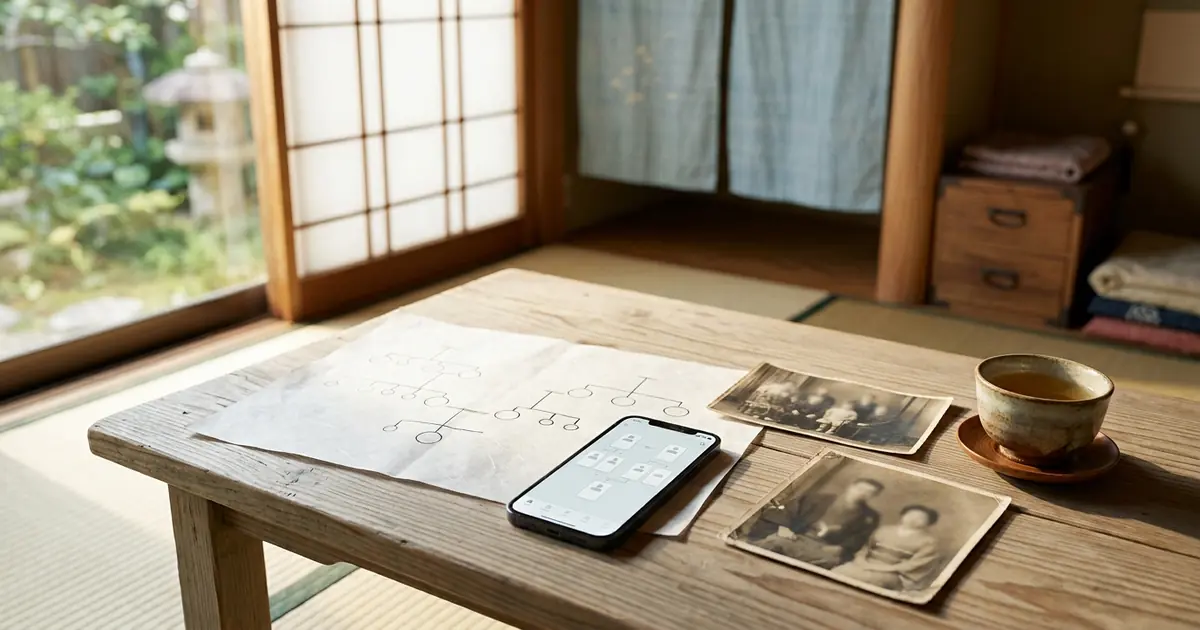
A family tree on screen is convenient, but on paper it takes on a different kind of weight. Spreading it out when relatives gather for a memorial service or Obon, handing it to your grandfather and grandmother on Respect for the Aged Day, sending it as a PDF to siblings who live far away — a family tree often truly speaks to people only once it takes a form you can hand over.
However, as your family grows, a problem arises. If you try to fit everything on one sheet of A4, the text keeps getting smaller. With a family tree of seven generations and more than two hundred people, the names become too small to read.
That is why Family Storage offers three ways to print. In this installment, we explain when to use each one, how to print “ancestors only,” and the steps for saving as a PDF.
Opening the print screen
- Open the Family Map
- From the buttons along the top, press “Print”
- A separate print screen opens, with fields at the top for choosing the print method, size and scope
Your choices are reflected on screen right away. Since you can choose while watching the result, feel free to switch back and forth as many times as you like to check.
Please note that what gets printed is the family tree of the family currently shown on screen. If you want to print the family tree of your mother’s family home, first switch using “the ○○ Family” buttons or “⌂ Set as center,” then press “Print” (switching is explained in the previous installment).
Three Ways to Print
1. “Fit on one A4 sheet” — for small family trees
Prints the whole family tree shrunk onto one sheet of A4 paper. For up to about ten family members, this is the easiest option.
The more family members there are, the more it is shrunk and the smaller the text becomes. If it feels hard to read, please try one of the next two methods.
2. “Actual size, split across A4 sheets” — large, on your home printer
Prints the family tree without shrinking it, split across several sheets of A4 paper. After printing, lay them out and tape them together to make one large sheet.
- Under “Size,” you can choose the width of each card (22mm, 30mm or 40mm)
- Once you choose, the number of sheets needed is shown right away (for example, “6 sheets”)
- Each sheet is printed with a label such as “3/6 (row 1, column 3)” showing which sheet it is and where it goes
- To make joining easier, the edges of the sheets are printed so that they overlap slightly
The nice thing about this method is that you can make a large family tree on your home printer. If it seems like too many sheets, try choosing a smaller “Size.”
3. “One large sheet (for PDF)” — a single, poster-like sheet
Fits the family tree onto one large sheet of paper. You can choose the paper size from A3, A2, A1, A0, or “Fit to content.” Portrait or landscape orientation is decided automatically to suit the shape of the family tree.
This method is suited to saving as a PDF and having it printed in a large format at a print shop or similar. It is perfect for framing and displaying, or hanging up at a memorial service.
Choosing the Scope — “Whole Family” and “Ancestors Only (Direct Line)”
The print screen has a field called “Scope.”
- “Whole family” — prints everyone shown on the screen
- “Ancestors only (direct line)” — prints only the people you can trace upward from the center person: parents, grandparents, great-grandparents, and so on
With “ancestors only,” siblings, aunts and uncles, children and so on are left out, giving a family tree in which only the bloodline leading to you is lined up vertically. You can see at a glance how many generations back you have traced, so it is also well suited to making a single large-format PDF.
Dotted ancestors whose names have not yet been registered are left in as they are. We believe that showing where the unknown begins makes for a more honest family tree.
Please note that this field is not shown until there are at least two ancestors you can trace.
Saving as a PDF
- Once you have chosen the method, size and scope, press “🖨 Print”
- Your browser’s print screen opens
- Set “Destination” or “Printer” to “Save as PDF”
- Once saved, it becomes a PDF you can send to your family by email or other means
Please note just one thing. If you change the paper size on the browser’s print screen, that setting takes priority. Please leave the paper setting at “Default.” It will then come out neatly at the size you chose on the Family Storage screen.
For printing and saving PDFs, we recommend using a computer with a large screen.
Easy to Tell Apart, Even in Black and White
A married couple is joined by a solid double line, and a divorced couple by a dotted double line. Because they are told apart by the type of line rather than by color, you can distinguish them even on a black-and-white printer. The names of the deceased are preceded by a small “the late” mark.
How People Are Using It
- Memorial services and Obon — spread it out when relatives gather, and conversation about your ancestors starts naturally
- Respect for the Aged Day and longevity celebrations — show your grandfather and grandmother how far the family that began with them has spread
- Your children’s school assignments — it also helps with homework such as “Let’s research our family history”
- For family far away — as a PDF, you can send it to everyone at once by email
A Little Extra Care Before Printing
- Check maiden names and gender — this makes the switching between families and the arrangement of couples correct
- Check dates of birth and who has passed away — cards show the year of birth and the year of death. For someone who has passed away, check “Deceased” and “the late” mark is added before their name
- Arrange the layout — if anything bothers you, tidy it up in select mode before printing (Part 3)
- Check the center — “ancestors only” traces upward from the center person. Please confirm whose ancestors you want to print before choosing it
What Is and Isn’t Printed
The cards on the printed family tree show only the information a family tree needs, such as names and years of birth and death. Addresses, phone numbers, health records and the like are not included. Even if you hand copies out to relatives, there is no need to worry about detailed personal information spreading.
Even so, for peace of mind, we suggest sending the PDF only to people you trust, such as family and relatives.
Frequently Asked Questions
When I printed on one A4 sheet, the text was too small
Please split it across several sheets with “Actual size, split across A4 sheets,” or use a large sheet with “One large sheet (for PDF).” Both let you print while keeping the text size.
The edges get cut off when I print
Please check whether you changed the paper size on the browser’s print screen. If you set the paper setting back to “Default,” it will print at the size you chose.
I want to print only my mother’s family line
On the Family Map, either choose your mother’s family home with “the ○○ Family” buttons, or set your mother with “⌂ Set as center,” then press “Print.” If you choose “Ancestors only (direct line),” you can print just the ancestors from your mother upward.
We Also Offer Family Trees Created by Specialists
Sometimes the information you have gathered yourself is not enough to trace your ancestors all the way back. With Family Storage’s Family Research, specialists obtain and examine the family registers (koseki), and with the “Information gathering + map creation” course we also create a PDF of your Family Map. The application process will be explained in the final installment of this series.
Next Time: Records for Each Person
Every person in your family tree has a life of their own. In the next installment, we explain how to keep records for each person, from basic information and photos to the location of their grave.
In this series, "How to Use Family Storage," we introduce the features one at a time so that even first-time users can use them with confidence.

Comments (0)
No comments yet. Be the first to comment.